|
|
General Cleanup :
Cleaning up your hard drive will boost performance, but
turning off programs running in the background that you don't
need will free up tons of processor and RAM resources. A few of
these will show up in your START>PROGRAMS>STARTUP
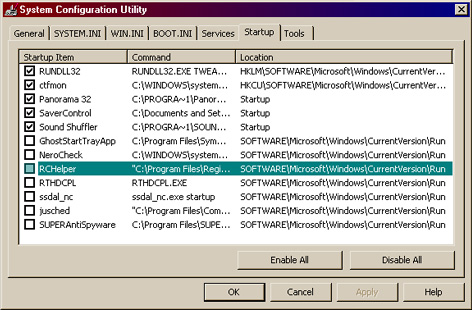
folder, but most are accessed in the System Configuration Utility.
You can start it by using the RUN command from the Startup
menu (or SEARCH in Win7/8) and then typing MSCONFIG. Simply uncheck any programs under
the STARTUP tab (and often in the "SERVICES" tab also) that do not need to be loaded at bootup and
run in the background. If you're not sure about what a program
does either leave it or look it up on the internet. Most third
party software applications load on startup for quickstart or
to run some update agent, but will launch just fine from their
desktop or program icon when needed without having to be included in the Windows startup list.
As
for cleaning, Norton CleanSweep does a nice job as does CCleaner and Ace Utilities. If you don't have a cleanup application, Windows has some manual cleaning tools that can be used.
To clean up surfing leftovers, IE4 and
up has the "Tools /Internet Options" / "Clear History" and
"Delete Temporary Internet Files" features that work very
well. IE6, IE7 & IE8 also have a "Delete Cookies" option that eliminates
the need to delete through "My Computer" or "Explorer". Also,
there are programs out there that finds orphaned
DLL files and programs that are no longer used. A big part of
cleaning is to uninstall any programs you don't use. They bog
down your "System" folder, your registry and waste hard drive
space. Here are a few other tips
:
Uninstalling unused Components
Many people never
bother to check how many applications are installed but have never been used.
To
uninstall unwanted programs:
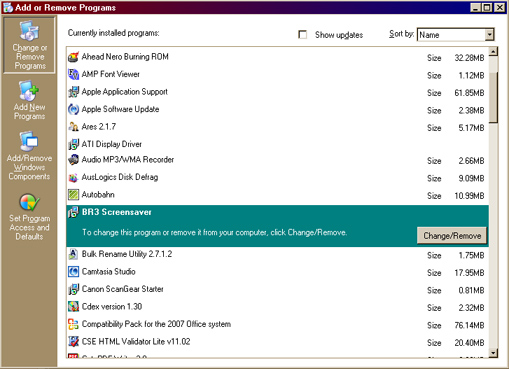
Open your Control Panel
(select Start > Settings > Control Panel)
Open
Add/Remove Programs
Select the components you want to remove and press OK. Be careful what you remove. There are items that look useless but affect things like internet and email.
Deleting
Temp Files
This is best done using a cleaning application. Quite tedious. Here is the manual process anyway:
When Windows crashes, or locks-up and you
have to use Ctrl+Alt+Del to restart, some temporary files will
be left on your disk.
This sometimes also happens when
un-install routines of programs don't clean up properly.
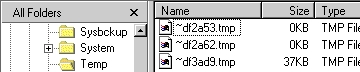
These files will be left in your \Windows\Temp folder.
You can use Windows Explorer to find and delete these
files. To be on the safe side, don't delete files with today's
date, these files could still be in use (most probably you'll
get an error telling you that a file can't be deleted because
it's in use).
You can also
check your entire hard disk, to see if there are any temp
files in other places:
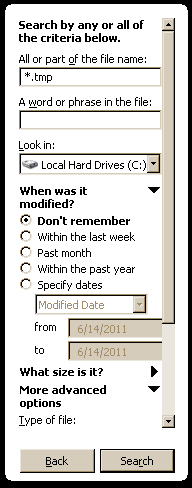
Open Windows Explorer, and select
your drive (e.g. C:\)
Press F3 or use the "Search" button to open Find
Enter *.tmp (where * means "ALL")
Make sure that the check-box for Include hidden files is
checked
Press Search
Deleting
other files
Other files you could delete are files with
these extensions:
.bak - Old file; when a new
version of a program comes along, sometimes it will rename the
old version with an .bak extension. Be careful when removing
these files.
.chk - ScanDisk backup file; if there's
lost clusters found when you run ScanDisk, these files will be
created. They will not come back, but new ones can be created
with future ScanDisk uses.
.cnt - Help-related file;
ever notice those tables of contents when you launch certain
Help files? If you don't need a table to help you navigate
through a Help file, delete these. They will not come back.
.fts - Help-related file; when you perform a search
with a Help file, this is created to make all future searches
be performed quicker. E.G., not worth having around unless you
use Help files on a daily basis. They are re-created if you do
a search in a Help file, so these should be regularly scanned
for and deleted.
.gid - Help-related file; when you
run a Help file, it creates a GID to make future accesses to
that particular help file a tad quicker. They're a complete
waste of space. You'll have to delete these on a regular
basis, as they are recreated with every Help file execution.
.grp - Program Manager Group file; if you never use
Program Manager (Win 3.*) anymore, why keep these around? They
will not come back, but an install program could create new
ones.
.old - Old file; see .bak.
.tmp -
Temporary file; when you exit out of Windows without shutting
down everything, these files could be littering your hard
drive (typically, they can be found in the \Windows\Temp\
folder). Many programs have temp files to help speed up
processes; they're a necessary evil. You might find hundreds
of these just waiting to be deleted.
.~mp - Temporary
file; see .tmp.
.$$$ - Old file; see .bak (usually,
not always)
.000 - Old file; see .bak
To
delete these:
Open Windows Explorer, and select your
drive (e.g. C:\)
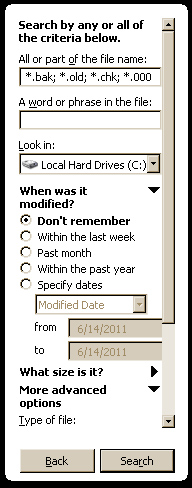
Press F3 or "Search"
Enter *.bak; *.old;
*.chk; *.000 (and any others you want)
Semicolon and space is the seperator
Press Search
To be on
the safe side, delete your files to the Recycle Bin, and leave
them there for a week or two. If you don't run into any
problems, you can empty the Recycle Bin. If Windows or any
program complains about a missing file, just select your
Recycle Bin, find the file and right-click on it. From the
context menu choose Restore. This will restore the file to
it's original location.
Temporary Internet
Files
Another source of wasted hard disk space
are the Temporary Internet Files. To speed up your Internet
browsing, pages, graphics and other page elements are stored
in your browsers cache. This was created mainly to optimize dial-up connections. With broadband, It's worth it to clean this cache from
time to time:
Internet Explorer 4.x / 5.x
From
IE's menu, select View > Internet Options
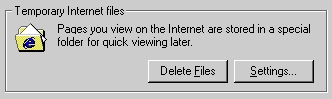
On the
General tab, press Delete Files button under the Temporary
Internet files header
• STARTUP
MECHANIC
• CCLEANER
• NEXT
|
|